
How to Manage Your Classes

-
Log in to your account with the email address you previously used for your classes. If you can’t remember your email address, please contact our Client Coordinator..
-
If you need to set a new password. Click Forgot Password? and an email to create a new password will be sent to you.
-
Please note the email will come from the following address: wix-team@notifications.wix.com. Please check your Junk/Spam folder if you do not receive a password reset email.
Please note:
If you are an existing client who was using the previous booking system, you have already been added to the system using the email address you previously provided us. A package of the classes you previously paid for has already been assigned to you. However, you still need to create a new account in the new system with the same email address that you used before and receive a password.
-
You can choose My Account/ Mon compte to customize your account (email, password, photo, personal information, privacy, etc.)
-
You can choose My Bookings / Mes réservations to book classes and to see your past and upcoming classes.
Booking Classes

-
It will take you to the Explore Classes page. Choose the class you are scheduling.

Please note:
You will see the classes with the price of an individual class. If you are scheduling classes from your existing package/plan, you can choose to use your package later. You will not be charged if you use your package.
-
It will take you to the Explore Classes page. Choose the class you are scheduling.
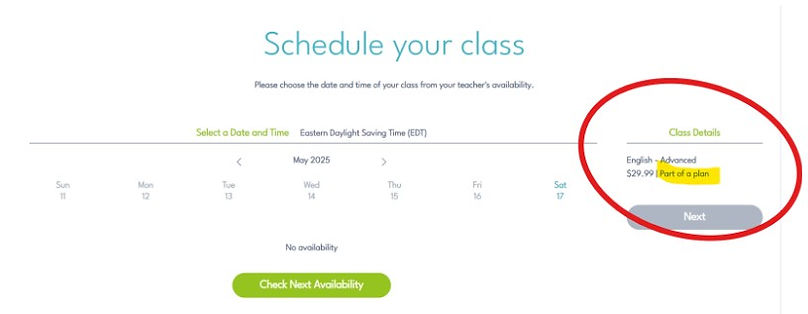
-
Click Next
-
Choose your teacher
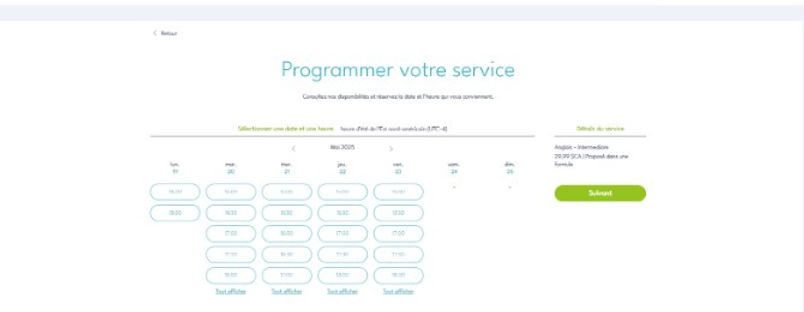
-
Click the Next / Suivant button
-
On the Booking Form page, if you are an existing client and you are logged in, you do not need to fill out any additional information.
-
Under Payment and Use My Plan at the bottom, choose your package to book your class from.
-
Click Book Now

Rescheduling or Canceling Classes
-
Click the turquoise member login button at the top of the website
-
Click My Bookings
-
On your My Bookings page, find the class that you want to reschedule or cancel
-
Click the green Manage button
-
Click Reschedule or Cancel
-
If you Reschedule, you will be taken to the Booking Calendar page to choose a new date and time.
-
If you choose Cancel, a pop up will appear. Choose Cancel.
Reminder: Classes need to be canceled a minimum of 48 hours before the start of the class. Classes cannot be changed after this time. You can read about our policies in our Terms of Service.
If you need help in managing your classes, please contact our Client Coordinator.